4.7 KiB
| comments | description | keywords |
|---|---|---|
| true | Learn how to view image results inside a compatible VSCode terminal. | YOLOv8, VSCode, Terminal, Remote Development, Ultralytics, SSH, Object Detection, Inference, Results, Remote Tunnel, Images, Helpful, Productivity Hack |
Viewing Inference Results in a Terminal
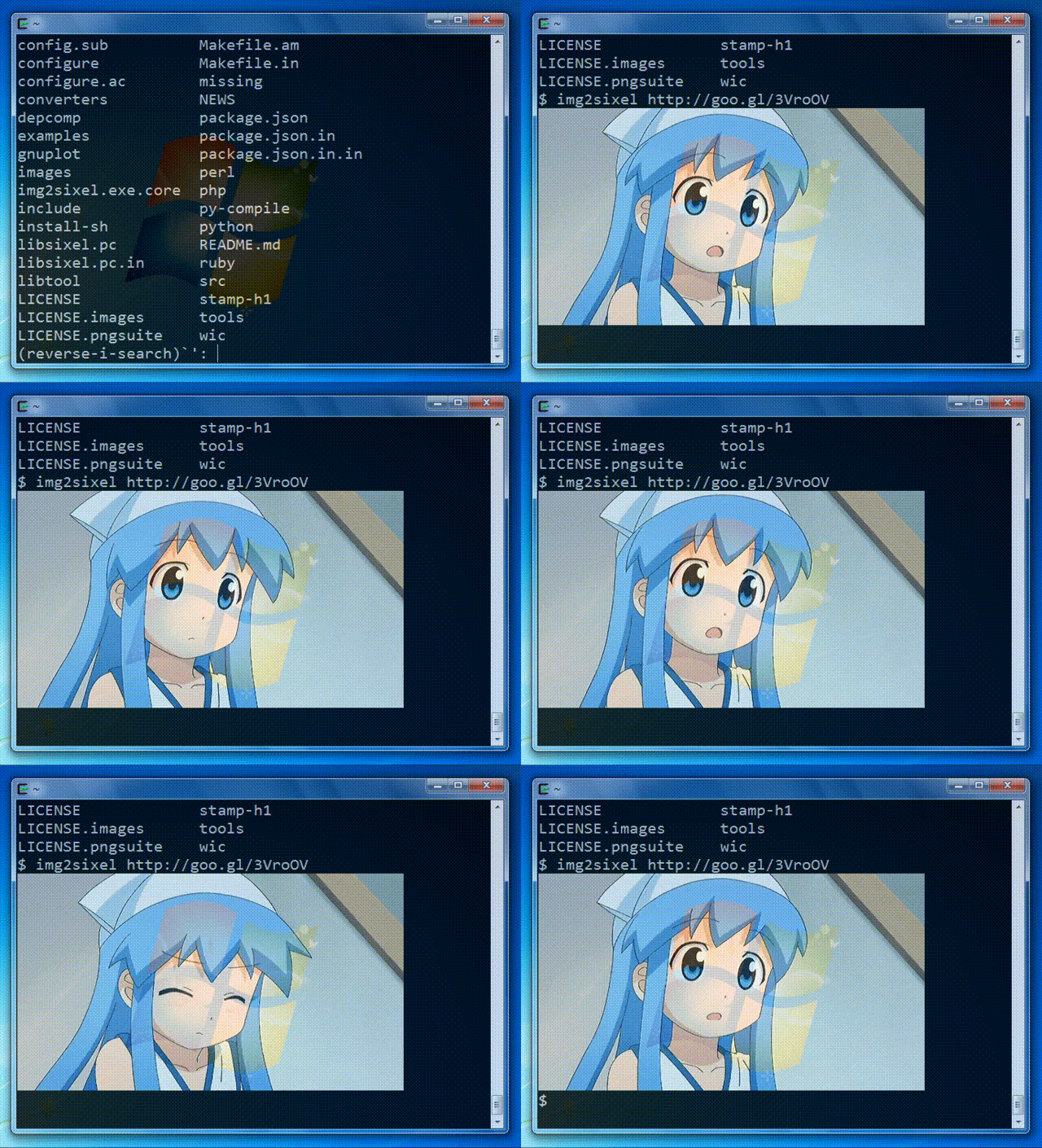
Image from the libsixel website.
Motivation
When connecting to a remote machine, normally visualizing image results is not possible or requires moving data to a local device with a GUI. The VSCode integrated terminal allows for directly rendering images. This is a short demonstration on how to use this in conjunction with ultralytics with prediction results.
!!! warning
Only compatible with Linux and MacOS. Check the VSCode [repository](https://github.com/microsoft/vscode), check [Issue status](https://github.com/microsoft/vscode/issues/198622), or [documentation](https://code.visualstudio.com/docs) for updates about Windows support to view images in terminal with `sixel`.
The VSCode compatible protocols for viewing images using the integrated terminal are sixel and iTerm. This guide will demonstrate use of the sixel protocol.
Process
-
First, you must enable settings
terminal.integrated.enableImagesandterminal.integrated.gpuAccelerationin VSCode."terminal.integrated.gpuAcceleration": "auto" # "auto" is default, can also use "on" "terminal.integrated.enableImages": false
-
Install the
python-sixellibrary in your virtual environment. This is a fork of thePySixellibrary, which is no longer maintained.pip install sixel -
Import the relevant libraries
import io import cv2 as cv from ultralytics import YOLO from sixel import SixelWriter -
Load a model and execute inference, then plot the results and store in a variable. See more about inference arguments and working with results on the predict mode page.
from ultralytics import YOLO # Load a model model = YOLO("yolov8n.pt") # Run inference on an image results = model.predict(source="ultralytics/assets/bus.jpg") # Plot inference results plot = results[0].plot() #(1)!- See plot method parameters to see possible arguments to use.
-
Now, use OpenCV to convert the
numpy.ndarraytobytesdata. Then useio.BytesIOto make a "file-like" object.# Results image as bytes im_bytes = cv.imencode( ".png", #(1)! plot, )[1].tobytes() #(2)! # Image bytes as a file-like object mem_file = io.BytesIO(im_bytes)- It's possible to use other image extensions as well.
- Only the object at index
1that is returned is needed.
-
Create a
SixelWriterinstance, and then use the.draw()method to draw the image in the terminal.# Create sixel writer object w = SixelWriter() # Draw the sixel image in the terminal w.draw(mem_file)
Example Inference Results
!!! danger
Using this example with videos or animated GIF frames has **not** been tested. Attempt at your own risk.
Full Code Example
import io

import cv2 as cv

from ultralytics import YOLO
from sixel import SixelWriter

# Load a model
model = YOLO("yolov8n.pt")

# Run inference on an image
results = model.predict(source="ultralytics/assets/bus.jpg")

# Plot inference results
plot = results[0].plot() #(3)!

# Results image as bytes
im_bytes = cv.imencode(
    ".png", #(1)!
    plot,
    )[1].tobytes() #(2)!

mem_file = io.BytesIO(im_bytes)
w = SixelWriter()
w.draw(mem_file)
- It's possible to use other image extensions as well.
- Only the object at index
1that is returned is needed. - See plot method parameters to see possible arguments to use.
!!! tip
You may need to use `clear` to "erase" the view of the image in the terminal.